
Adobe Premiere Alternatives for Beginners in 2026
Premiere Pro is a standard video editing program for many creators, editors, and production teams.
It is powerful, flexible, and widely used, but that doesn’t make it the easiest starting point. The interface can feel complex, the subscription may be too much for occasional editing, and many new users only need a simpler way to make good videos.
This guide covers beginner-friendly software that can work as an Adobe Premiere alternative in 2026. Each product has its own purpose, so the choice depends on the type of video you want to create.
Quick Picks: Adobe Premiere Alternatives
● DeeVid AI – best for AI video generation
● Movavi Video Editor – best for simple desktop editing
● Wondershare Filmora – best for effects and creator templates
● Cyberlink PowerDirector 365 – best for more advanced editing
● Clipchamp – best browser-based option
● Shotcut – best free open-source option
● Pinnacle Studio – best Windows-only traditional editor
● CapCut – best for short-form social videos
● VEED – best for browser captions and marketing videos
● VideoPad – best for simple home video editing
Comparison Table: Best Adobe Premiere Alternatives
| Product | Platform | Best for | Key features | Price |
|---|---|---|---|---|
| DeeVid AI | Web, iOS, Android | Creating clips from prompts or images | Text-to-video, image-to-video, AI avatars, AI music | Free start; $14/month |
| Movavi Video Editor | Windows, macOS | Quick video editing projects | Auto subtitles, noise removal, background removal, auto-tracked cropping | Free trial; $19.95/month |
| Wondershare Filmora | Windows, macOS | Ready-made visual styles | Creative assets, AI credits, motion templates, 4K export | From $19.99/month |
| Cyberlink PowerDirector 365 | Windows, macOS, mobile | More detailed timeline without Adobe | AI effects, color tools, multi-track timeline | Free trial; $24.99/month |
| Clipchamp | Web, Windows | Editing directly in a browser window | Browser timeline, stock assets, templates, brand kit | Free plan; Premium at $19.99/month |
| Shotcut | Windows, macOS, Linux | Free cross-platform desktop workflow | Native timeline editing, wide format and 4K support | Free |
| Pinnacle Studio | Windows | Working on longer Windows projects with manual controls | Keyframes, masking, color grading | Free trial; paid license starts at $59.99 |
| CapCut | Web, Windows, macOS, iOS, Android | Making vertical clips for TikTok, Reels, and Shorts | Social templates, auto captions, text effects, vertical exports | Free plan; $19.99/month |
| VEED | Web | Creating captioned videos for marketing | Auto subtitles, dubbing, avatars | Free plan; $24/month monthly |
| VideoPad | Windows, macOS, mobile | Simple personal videos | Drag-and-drop editing, fast processing, effects, transitions | Free for non-commercial use; $139/year |
| Krock.io | Windows, macOS, mobile | video review software options for teams | send a sequence for review and get frame-accurate comments back | starting around $10/user |
The List of Best Adobe Premiere Pro Alternatives in 2026
1. DeeVid AI
Pros
● Works with text, image, and video prompts
● Simple interface for quick AI video generation
● Includes templates, audio tools, and lip-sync features
● Good for short visual drafts and social media concepts
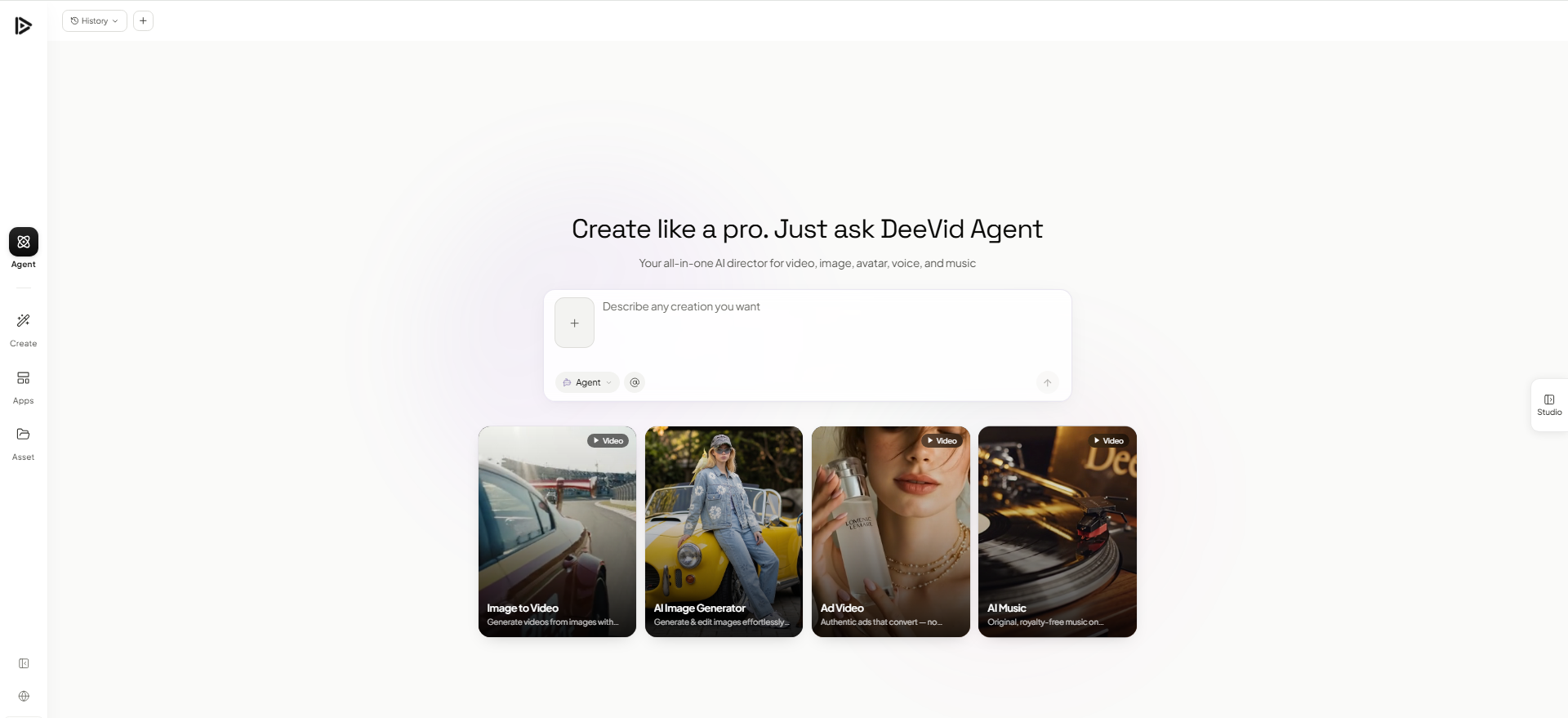
DeeVid AI is a strong online option for users who want to create AI videos quickly and without a complicated setup. It supports several generation methods, including text-to-video, image-to-video, video-to-video, avatars, lip sync, AI voice, and music, so it can handle many different creative tasks.
It’s especially good for users who want to test different video ideas: cinematic scenes, talking videos, product-style clips, social posts, or short branded visuals.
The main appeal is the combination of video quality, ease of use, and creative control to experiment.
Key features include:
● AI Video Generation/Edit
● AI Image Generation/Edit
● AI avatars
● AI music
2. Movavi Video Editor
Pros
● Clean, well-organized desktop interface
● Easy for beginners to learn
● Includes effects, titles, transitions, and music tracks
● Offers one-click AI tools for various jobs
Cons
● Free trial has limits
● Advanced users may want deeper manual controls
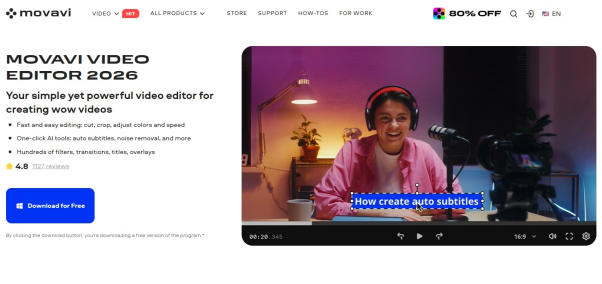
Movavi Video Editor is desktop video editing software for beginners who want a simple Adobe Premiere Pro alternative. It works well for tutorials, product clips, travel videos, family meetings, and everyday creator projects.
Its AI tools cover common beginner problems such as creating subtitles, removing noisy audio, changing background, and reframing for vertical viewing. The program also includes hundreds of effects, music, and sounds effects, as well as various export presets.
Key features include:
● Auto subtitles
● Noise removal
● Silence removal
● Background removal
● Auto-tracked cropping
● Built-in effects
3. Wondershare Filmora
Pros
● Easy interface with a short learning curve
● Strong selection of templates, effects, and transitions
● Good for social videos and YouTube projects
● Handles basic and intermediate editing well
Cons
● Large asset library takes time to browse
● May slow down with heavier projects
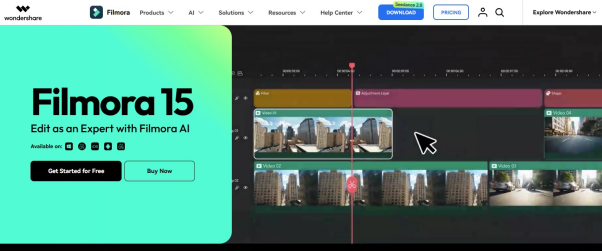
Filmora is built around visual style, templates, and creator-focused assets. It suits users who want animated text, motion elements, overlays, etc.
The program is often used for YouTube intros, reaction videos, channel updates, social clips, and short explainers. Its asset library gives beginners many design directions to test without building every element manually.
Key features include:
● Creative asset library
● Motion tracking
● AI text-to-video
● Text-to-speech
● AI object removal
● Audio enhancement
4. CyberLink PowerDirector 365
Pros
● Strong feature set for a consumer editor
● Good balance of power and accessibility
● Includes effects, titles, transitions, and AI tools
● Works well for beginners who want room to grow
Cons
● Denser interface
● Workflow is less fluid than in pro-level editors
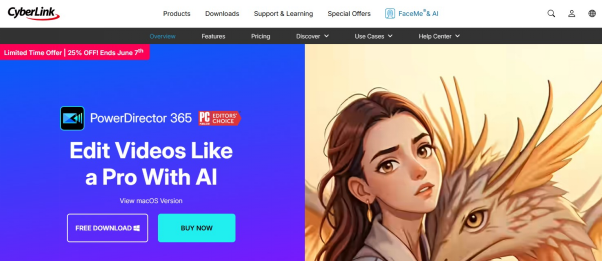
PowerDirector is feature-rich that sits between simple beginner apps and professional software. It combines a multi-track timeline with effects, animated titles, transitions, stock media, color tools, masks, chroma key, and AI-assisted features.
Compared with simpler Adobe alternatives, PowerDirector gives users more room to build layered edits, adjust visuals manually, and experiment with effects without the weight of a tool like Premiere Pro.
It’s a better fit for users who have outgrown very basic editors and want a broader editing toolkit.
Key features include:
● Multi-track timeline
● Stock media
● Motion graphics
● Chroma key
● Masking tools
● Color correction
● Audio editing
5. Microsoft Clipchamp
Pros
● Browser-based editor
● Free plan available
● Good Microsoft 365 connection
● No large installation
Cons
● Premium features tied to Microsoft 365
● Weaker for long projects
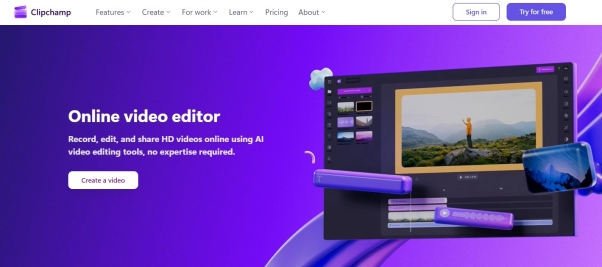
Microsoft Clipchamp is a browser-based video editor with a simple drag-and-drop interface. It is not trying to match Adobe Premiere Pro in depth; its value is quick access, simple editing, and built-in recording and caption tools.
The editor fits users who want to make straightforward videos without installing a heavier desktop program. Its Microsoft 365 connection also makes it a natural option for people already working inside the Windows and Microsoft ecosystem.
Key features include:
● Browser editing
● Drag-and-drop timeline
● Screen and camera recording
● Templates and stock library
● AI subtitles
● Voiceovers
● Microsoft 365 Premium access
6. Shotcut
Pros
● Free
● Open-source
● Cross-platform
● Good format support
Cons
● More technical feel
● Few ready-made creative assets
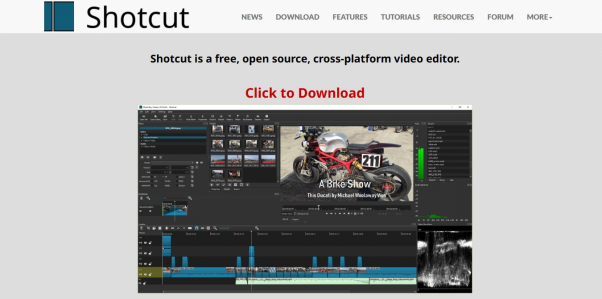
Shotcut is free, open-source and works on all major platforms, including Windows, macOS, and Linux. It gives users a real timeline editor without a subscription, trial period, or watermark restriction.
Shotcut is a good free Premiere Pro alternative for users who are comfortable learning a less guided interface in exchange for a capable free editor. It can handle basic YouTube videos, hobby projects, educational clips, and longer personal edits.
Key features include:
● Open-source
● Cross-platform
● Native timeline editing
● Wide format support
● 4K support
● Blackmagic Design support
● Audio filters
7. Pinnacle Studio
Pros
● Strong manual controls
● Good range of timeline tools
● Includes motion tracking, masking, and multicam editing
● More depth than many entry-level editors
Cons
● Windows only
● Some advanced tools are edition-dependent
Pinnacle Studio is a Windows video editor built around detailed timeline work. Users can arrange clips across multiple tracks, adjust motion with keyframes, apply masks, track moving objects, tune color, edit audio, and add titles, transitions, and effects.
Pinnacle Studio offers that old-school editing suite approach. It’s not as trendy or social-first as newer editors, but it gives Windows users a broad set of timeline-based tools in a one-time desktop program.
Key features include:
● Video masking
● Motion tracking
● Color grading
● Audio editing
● Titles and transitions
● Video effects
● Export presets
8. CapCut
Pros
● Strong for short-form social editing
● Works across mobile, desktop, and browser
● Good captions, templates, effects, and AI tools
● Fast workflow for vertical videos
Cons
● Pro features require payment
● Large projects may lag
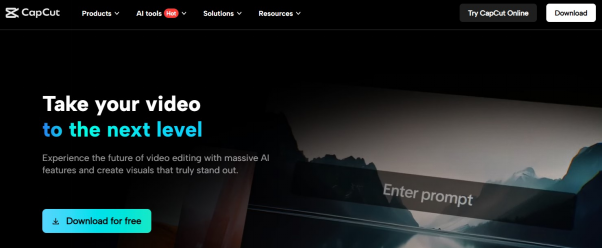
CapCut is there if you mainly do short-form trendy social content. It works across multiple platforms, which is convenient for creators who edit on different devices.
The program is especially popular for TikTok, Instagram Reels, YouTube Shorts, and vertical videos. It gives beginners fast access to social templates, auto captions, background removal, text effects, and vertical export options.
Key features include:
● Trendy social templates
● Text effects and filters
● Background removal
● Auto captions
● Text-to-speech
● Vertical video exports
9. VEED
Pros
● Excellent subtitle tools
● Good browser-based workflow
● Useful AI tools for speech-heavy videos
● Localization features
Cons
● Free plan has limits
● Depends on internet connection
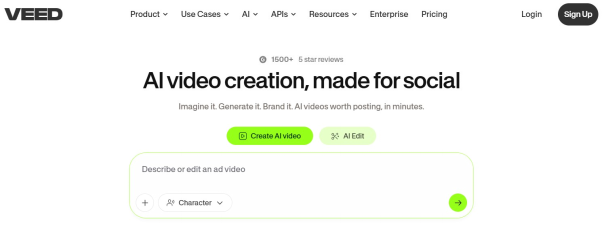
VEED is a browser-based Adobe alternative for users who mainly need to prepare videos for publishing, sharing, or localization. Instead of giving users a heavy editing interface, it keeps the workflow centered on captions, speech, translation, recording, and quick visual cleanup.
That makes VEED different from classic desktop editors on this list. It’s better for turning a recorded clip into several ready-to-share versions than for building a complex edit from many layers, effects, and detailed timeline adjustments.
Key features include:
● Auto subtitles
● Video dubbing
● AI avatars
● Screen recorder
● Background noise removal
● Video translation
● Text-to-speech
10. VideoPad
Pros
● Simple desktop interface
● Lightweight compared with larger editors
● Covers basic editing tools
● Good for personal projects
Cons
● Interface looks outdated
● Effects and transitions feel less current
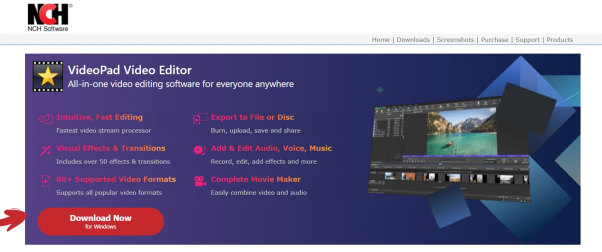
VideoPad is a simple video editing program from NCH Software for home videos, personal projects, and basic creator work. It gives beginners a straightforward timeline, drag-and-drop editing, effects, transitions, speed controls, and export tools.
The program’s value is in its lightweight feel. It opens quickly, keeps the controls familiar, and does not push users into templates, AI generation, or a browser workflow.
Key features include:
● Drag-and-drop timeline
● Video effects and text overlays
● Speed controls
● Chroma key
● Audio tools
● Video stabilization
● Export presets
11.Krock.io
Pros
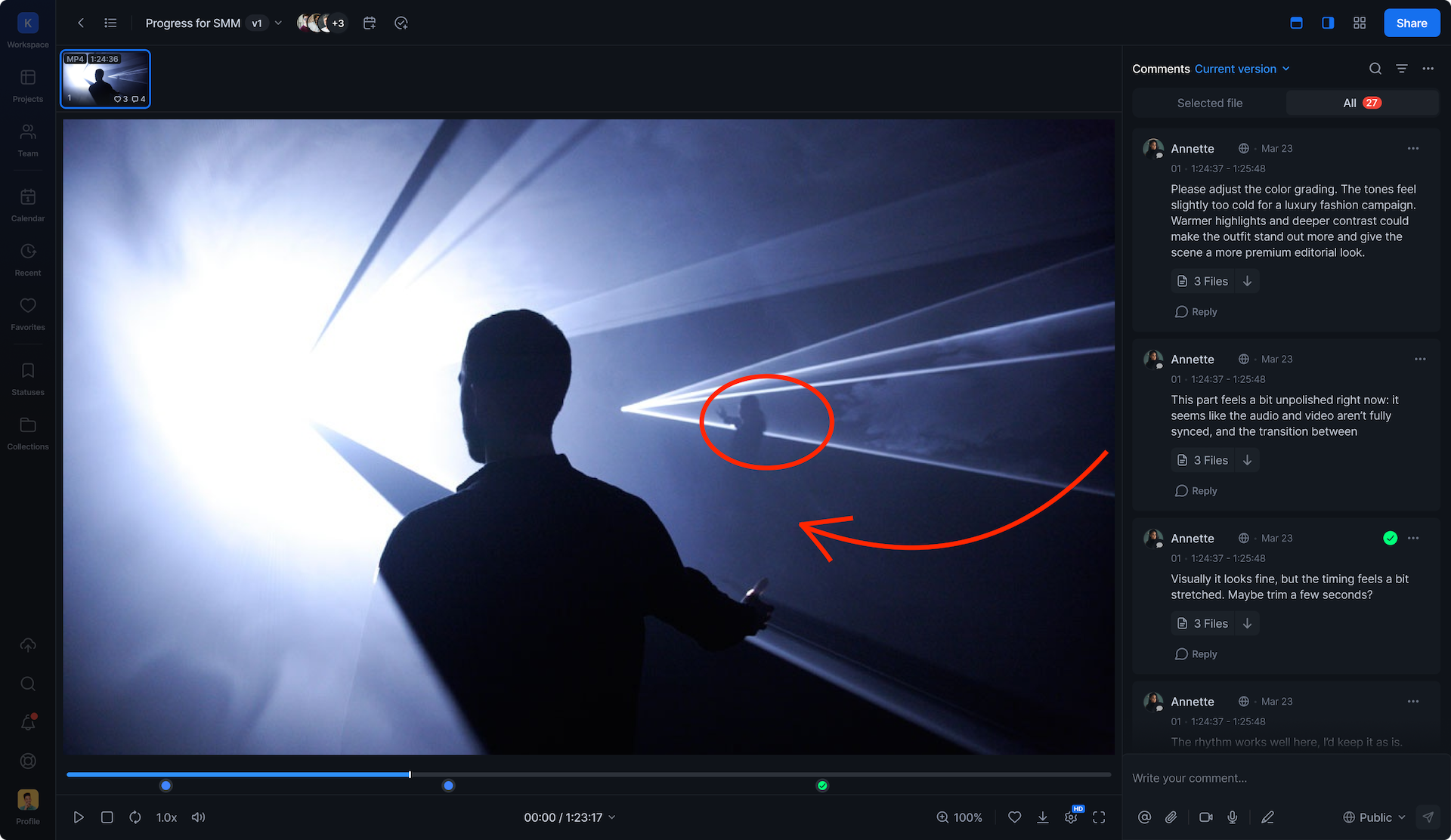
• Frame-accurate, time-stamped feedback — comments attach to the exact frame, not "around the 0:30 mark"
• Unlimited reviewers on every plan, including Free — clients and stakeholders never need a paid seat
• Direct plugin for Adobe Premiere Pro, plus DaVinci Resolve and Final Cut Pro support
• Built-in storyboard and animatic tools for planning before you even open the timeline
Cons
• Not an editor — it's built for review and approval, so you'll still cut in Premiere or another NLE
• Free plan storage (2GB) is tight once you're working with 4K exports
Most of the tools on this list help you cut the video. Krock.io picks up where the edit leaves off — it's one of the most popular video review software options for teams who outgrew email and Dropbox links for client feedback. It's a direct alternative to Adobe Frame.io, with a dedicated plugin that lets Premiere editors send a sequence for review and get frame-accurate comments back without leaving their project — and unlike Frame.io, Krock.io doesn't charge per reviewer.
Key features
• Frame-accurate, time-coded comments with on-screen drawing tools
• Adobe Premiere Pro plugin for sending and reviewing cuts directly from the timeline
• Unlimited reviewers on every plan — invite an entire client team at no extra cost
• Audio annotation with waveform view for voiceover and sound design feedback
• Storyboard Creator and Animatic tool for pre-production planning
• Version history with preserved comment threads across uploads
• 2TB+ storage on Pro plans, starting around $10/user (vs. Frame.io 's $15–$25/user)
Final thoughts
Adobe Premiere Pro is still one of the top tools for professional video editing, but beginners have plenty of easier ways to start in 2026. The right choice depends on your workflow, budget, device, and the kind of videos you plan to make.
The best approach is to start with the tool that matches your first project. A short social video, a product clip, a tutorial, and a family video do not need the same editing setup. Start simple, test the workflow, and move to a more advanced program only when your projects actually require it.